


Passkey Multifactor Authentication
A passkey is a FIDO authentication credential (either a physical security key or software option) based on FIDO standards that allows a user to sign in to apps and websites with the same process that they use to unlock their device (biometrics, PIN, or pattern).
Any passkey device or software option is compatible with ARIN’s multifactor authentication, though only one key can be registered to an individual ARIN Online account.
Supported Passkeys
ARIN has tested compatibility with these hardware passkeys:
- YubiKey 5C
- SoloKeys Solo USB-A
- AuthenTrend ATKey.Pro Type C
- Google Titan Security Key
ARIN has also tested each device on macOS with Safari, Chrome, and Firefox and tested each device on Windows with Chrome, Firefox, and Microsoft Edge.
Additionally, ARIN has tested compatibility with the software passkeys in these applications:
- Bitwarden
- 1Password
- Chrome
- Edge
- Firefox
- Safari
Enabling Multifactor Authentication Through a Passkey
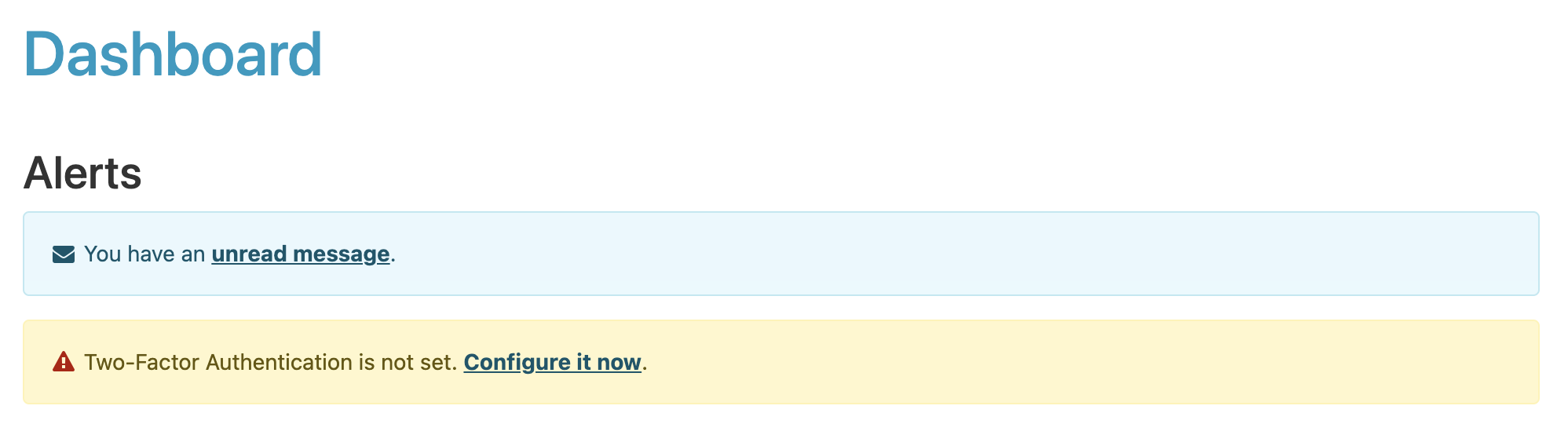
- Log in to your ARIN Online account. If you have yet to set up multifactor authentication, an alert will appear on the Dashboard which reads ‘Multifactor Authentication is not set. Configure it now.’ Select Configure it Now. (Multifactor authentication settings can also be accessed by selecting Settings from the menu under your name.)
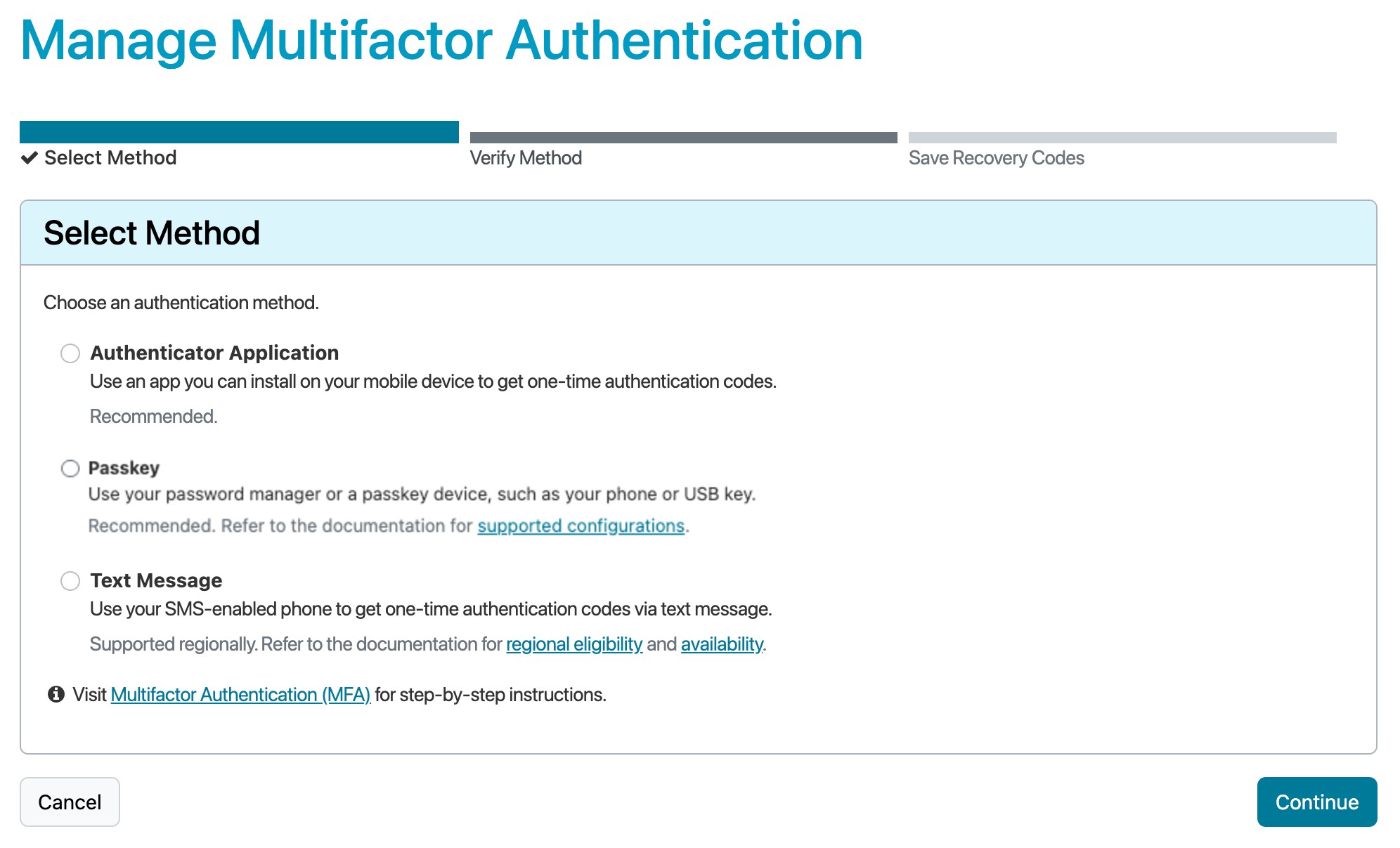
- Under the first step of ‘Select Method,’ confirm your choice of ‘Passkey,’ and select Continue.
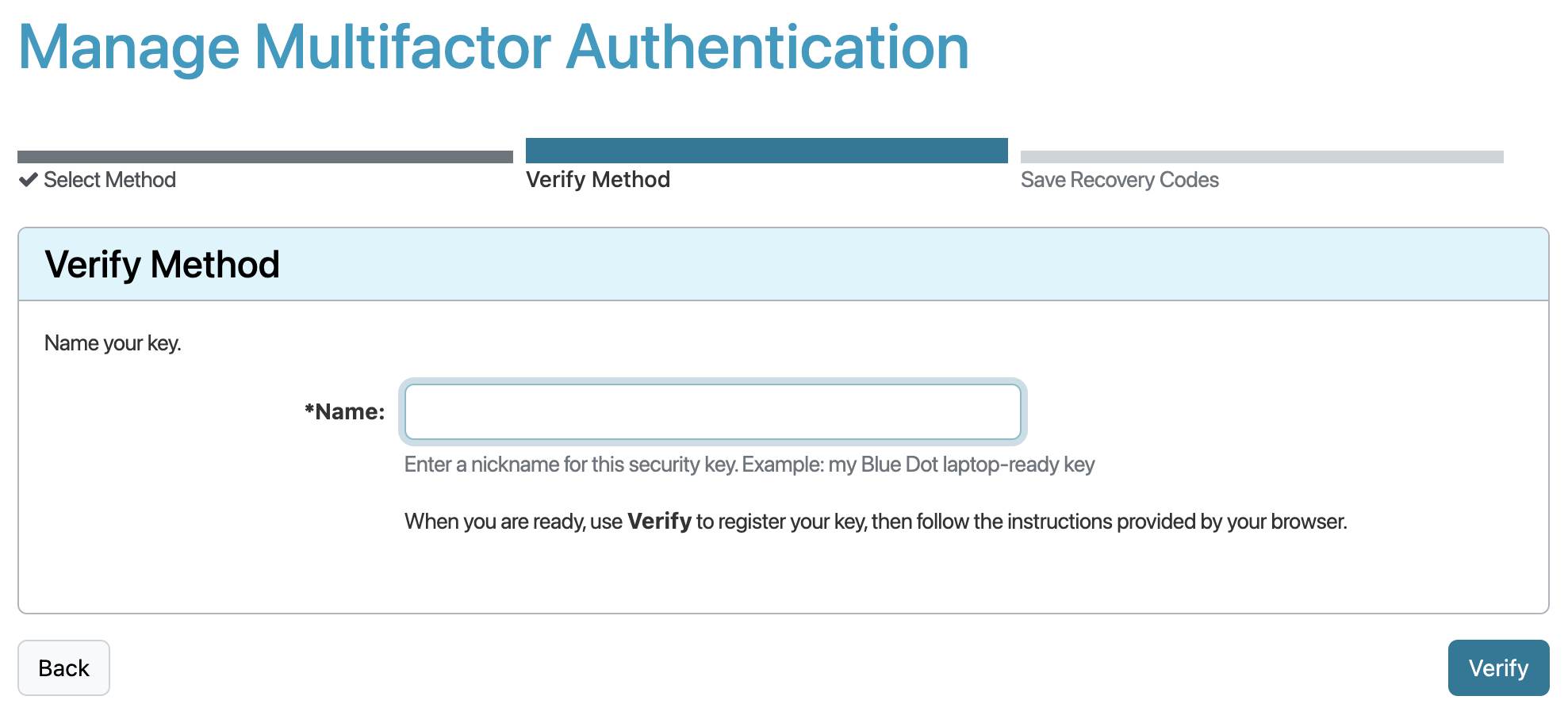
- Under the second step of ‘Verify Method,’ give your passkey a name and select Verify.
-
You will be prompted by your browser to complete the steps that will associate your passkey with your ARIN Online account. ARIN has tested and supports the documented hardware and software passkeys listed above, but does not actively support the implementation process.
-
You will be provided a set of 16 recovery codes that can be used if you lose access to your passkey. You can enter any of these codes once each to log in to ARIN Online.
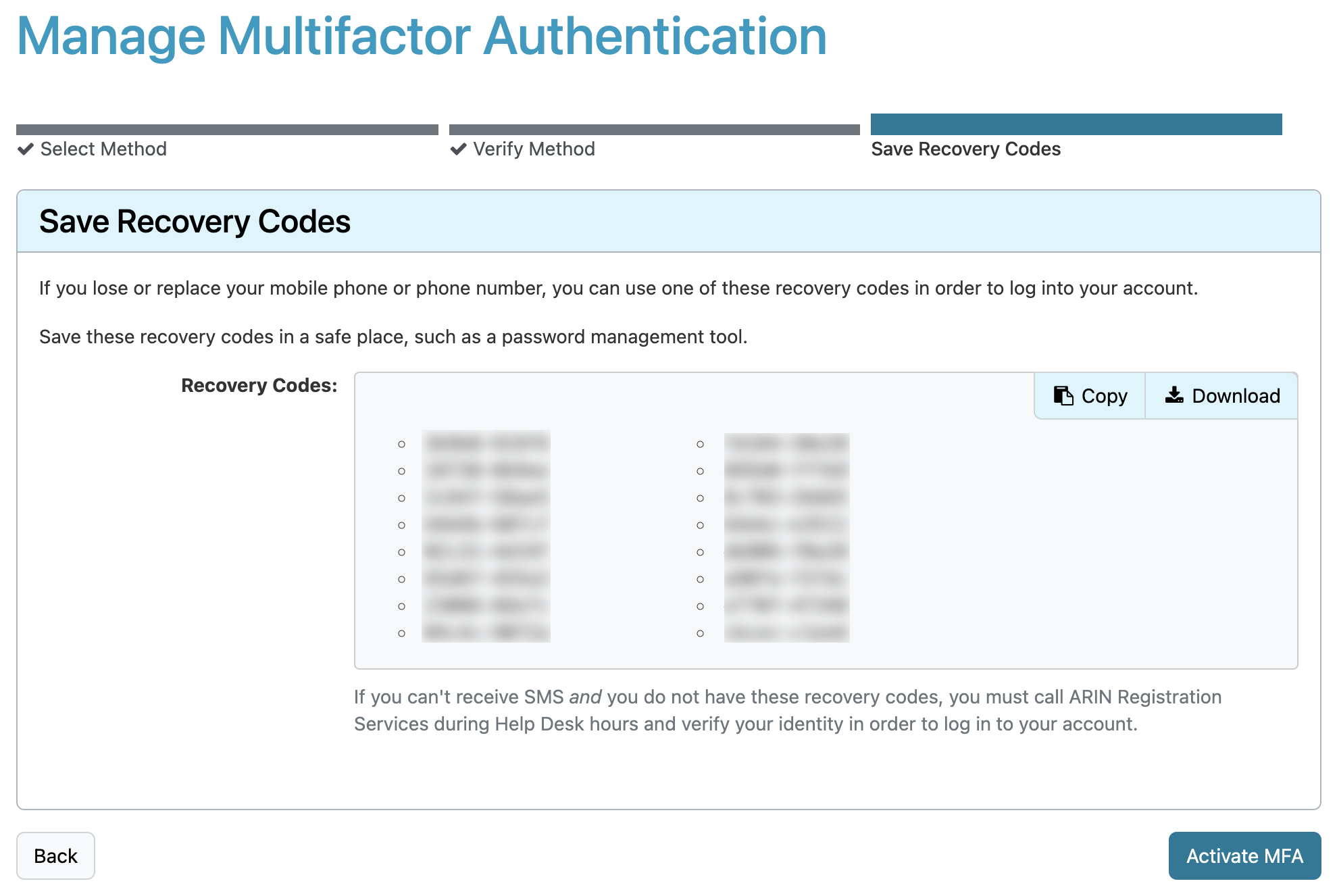
Important: Save your recovery codes in a password management tool, print it out, or write it down and store it in a safe place. These codes will only be displayed once.
Each recovery code can only be used once, though they can be used in any order.
Select Activate MFA or Save MFA Changes to complete the setup process.
Updating Your Passkey
Your ARIN Online account will be associated with only the most recent registered passkey. If you wish to replace your current passkey with a new one, simply register the new passkey and it will disable the previous one.