


Route Origin Authorizations (ROAs)
Route Origin Authorization (ROA) Overview
A ROA is a cryptographically signed object that states which Autonomous System Number (ASN) is authorized to originate a particular IP address prefix or set of prefixes. ROAs may only be generated for Internet number resources covered by your resource certificate. Reallocated and reassigned net resources cannot be added to an organization’s RPKI certificate. (The term ROA Request is used interchangeably with ROA on ARIN’s site to mean a route origination authorization created in ARIN’s RPKI repository.)
A ROA is composed of:
- An Origin AS
- A prefix and max length
- A ROA name (optional)
Are you a source organization involved in a transfer to specified recipients within the ARIN region (NRPM 8.3) or an inter-RIR transfer (NRPM 8.4)? See our routing security best practices and source pre-transfer checklist to ensure a clean transition.
Creating a ROA in ARIN Online
- Log in to ARIN Online and select Routing Security from the navigation menu.
- In the “Your Organization” window, select Manage RPKI for the organization for which you want to configure RPKI.
- On the “Routing Security Dashboard” page, select Create ROA.
- In the “Create a Route Origin Authorization (ROA)” window, complete the required fields, then select Next Step.
- In the “Review ROA” window, review and submit your ROA request by selecting Submit.
Note: Duplicate and overlapping ROAs are no longer allowed. The necessity for duplicate ROAs was removed with the release of the ROA auto-renew feature. See the RPKI FAQ for additional information.
Viewing Your ROAs
You can view your ROAs using these methods:
Using the API
Visit ARIN’s RPKI RESTful API User Guide to view a list of ROAs for an organization. (Note that you will need an ARIN Online account with an API Key to use Reg-RWS.)
Using ARIN Online
- Log in to ARIN Online and select Routing Security from the navigation menu.
- In the “Routing Security Dashboard” window, select Manage RPKI.
- Select “ROAs” in the top menu to view those created for the organization.
You can view your ROAs for another organization by using the drop-down menu in the upper left to select a different Org ID and selecting ROAs in the top menu.
You may also search your ROAs for a specific prefix or ASN using the search field on the ROA page.
Verifying Your ROAs Are Active
The RPKI repository is updated every few minutes. To verify that your resources are active, you’ll need to use an RPKI validator and obtain ARIN’s RPKI repository. Visit Using ARIN’s RPKI Repository for Routing for more information.
Removing a ROA
You can delete your ROAs using one of the following methods:
Using the API
Visit ARIN’s RPKI RESTful API User Guide to delete ROAs for an organization. (Note that you will need an ARIN Online account with an API Key to use Reg-RWS.)
Using ARIN Online
- Log in to ARIN Online and select Routing Security from the navigation menu.
- In the “Your Organization” window, select Manage RPKI to view those created for the organization.
- In the “Route Origin Authorizations” window, select Remove.
- Choose Remove again to confirm the removal. Changes will take effect in the RPKI database immediately and will be reflected in the public RPKI repository within 24 hours.
ROA Change Log
- Log in to ARIN Online and select Routing Security from the navigation menu.
- In the “Your Organization” window, select Manage RPKI.
- In the “Status Overview” window, select View the ROA Change Log.
On the “RPKI: View ROA Change Log” page, the “Origin AS/Prefix Pair Change Log” will be shown, which lists all new and modified ROAs of an Organization in the past 365 days. Logs longer than 100 items will be paginated.
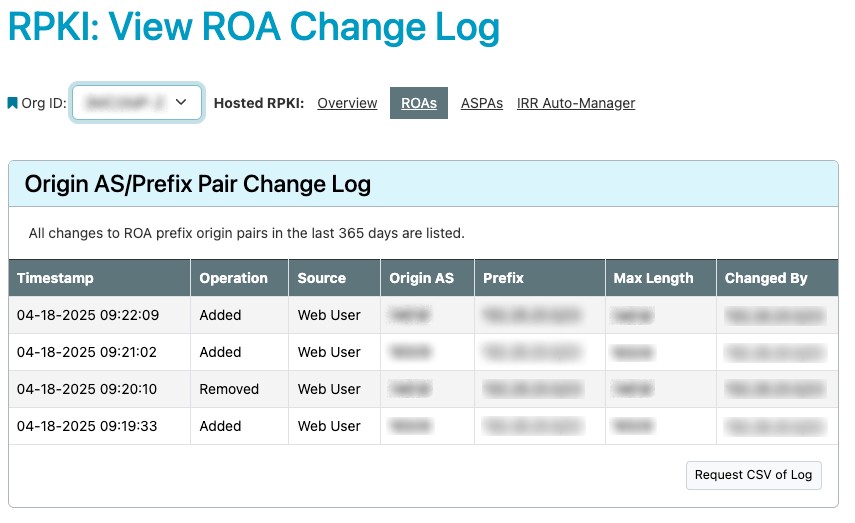
The table contains the following columns:
- Timestamp: Displays the date and time of the change.
- Operation: Displays either “Added” or “Removed.”
- Source: Displays either “Web User,” “API User,“ or “ARIN System.”
- Origin AS: Displays the Origin AS associated with the new or modified ROA.
- Prefix: Displays the Prefix associated with the new or modified ROA.
- Max Length: Displays the Max Length associated with the new or modified ROA.
- Changed By: Displays the first and last name from the profile of the ARIN Online user account that performed the change (as of when they made the change).
Selecting “Request CSV of Log” will submit a ticket requesting a full CSV file, and ARIN will review and respond within two business days. It will then be available for download for 90 days.
IRR Auto-Manager
The Internet Routing Registry (IRR) Auto-Manager is designed to facilitate the management of IRR route objects that reflect the authorized origin/prefix pairs specified in Route Origin Authorizations (ROAs) created with ARIN"s Resource Public Key Infrastructure (RPKI) tools. When enabled, as ROAs are generated, auto-managed IRR route objects will also be created based on the contents of the ROAs. Users will have the option to decline the creation of the auto-managed IRR route object.
The IRR Auto-Manager service provides a convenient way to generate an IRR route object for each Origin AS/prefix pair in an RPKI ROA. Having an IRR route object in the ARIN authenticated IRR database reduces risk from the broader Internet ecosystem where IRR route objects can be created in third-party IRR databases and Resource Public Key Infrastructure (RPKI) validation is not yet implemented.
Using the IRR Auto-Manager in ARIN Online
Global Setting of IRR Auto-Manager per Org ID
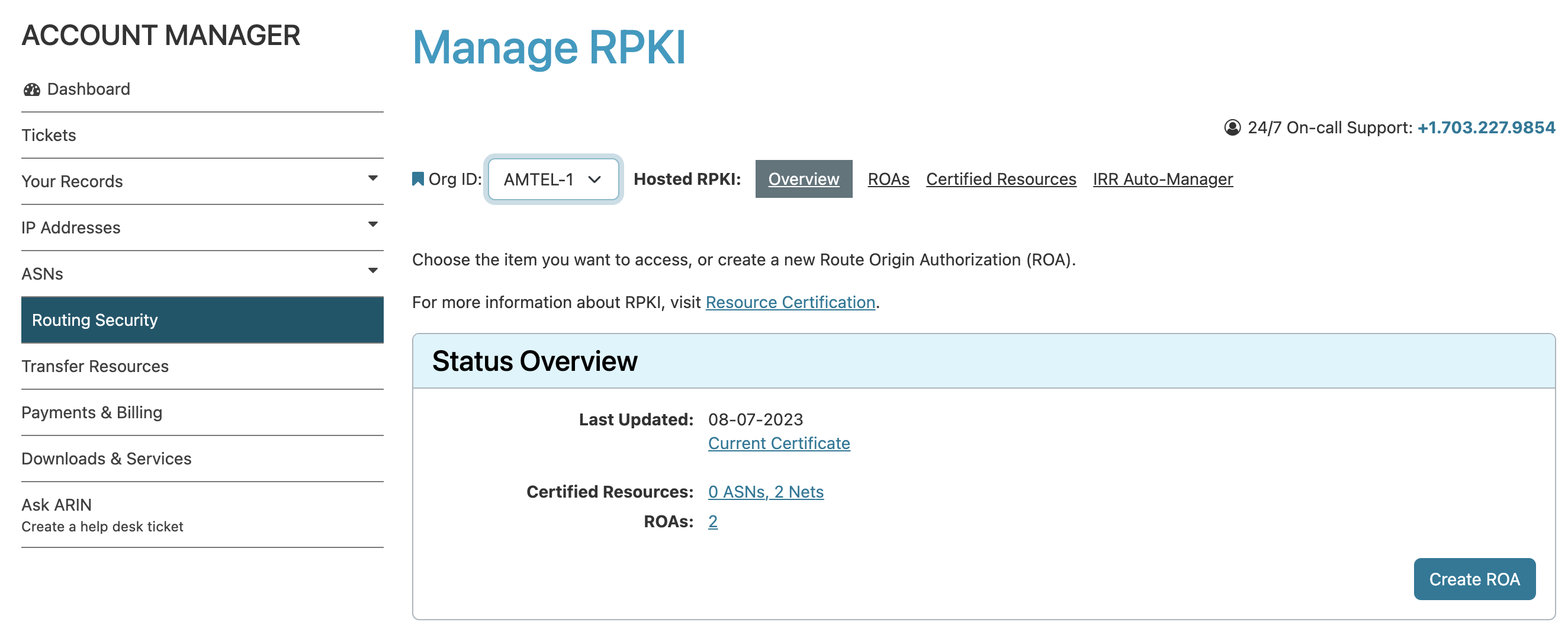
By default, the IRR Auto-Manager in ARIN Online is set to ‘On’ for all of your Org IDs. If you wish to turn off this functionality at a global level per Org ID, an “IRR Auto-Manager” tab has been added to the “Manage RPKI” pages under the Routing Security section. Select Routing Security, then Manage RPKI for the organization you want to manage. ‘IRR Auto-Manager’ will be found at the far right of the top navigation menu.
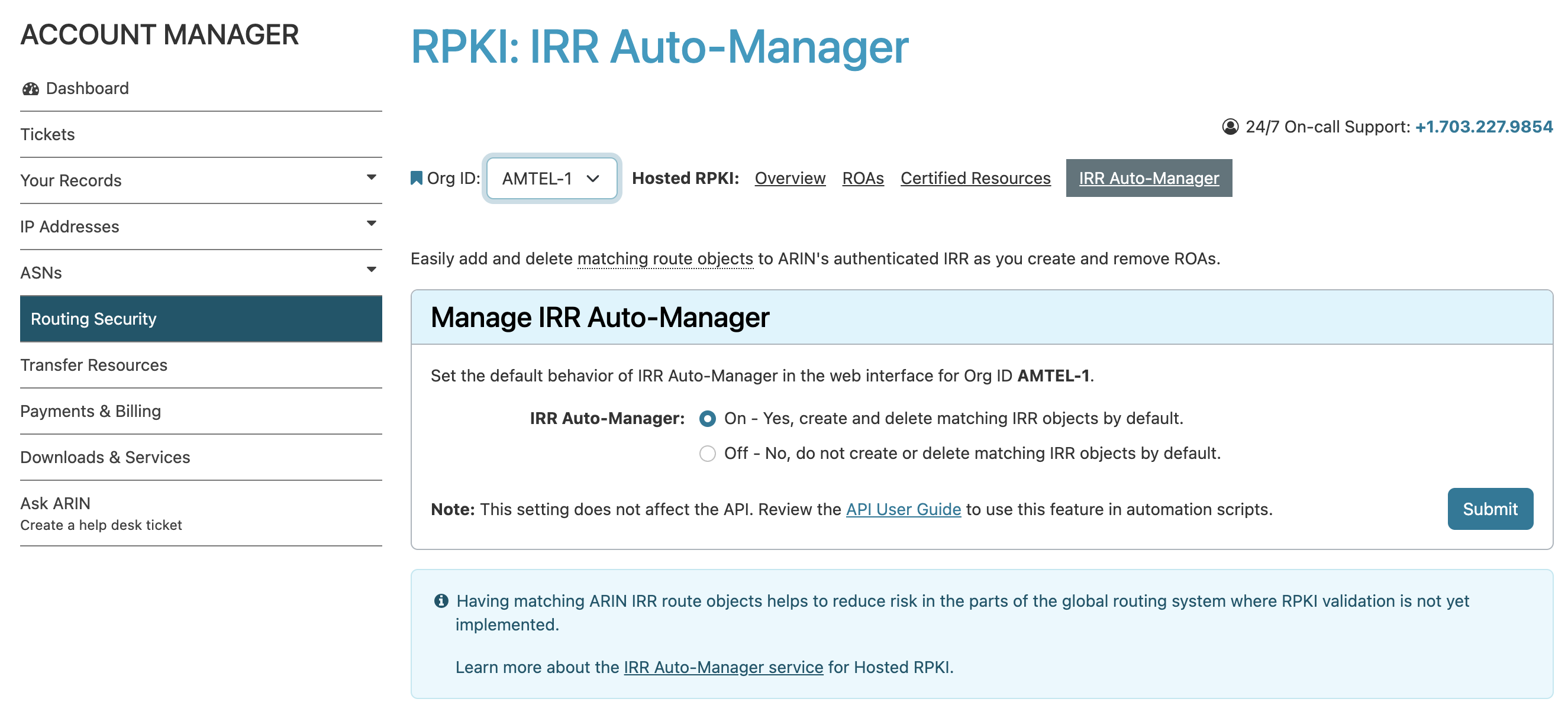
To set the default behavior of the IRR Auto-Manager for the Org, select the appropriate radio button and select Submit. You will receive a confirmation message at the top of the screen informing you your preference has been saved.
When creating ROAs for an Org ID for which the IRR Auto-Manager has been set to “Off,” you will still receive a prompt allowing you create the IRR route object, but doing so will not change the global setting.
ROA Creation Process
During the ROA creation processes, you will have the option to decline the IRR route object creation on a case-by-case basis.
When creating a ROA, there will be a check to see if there are existing, matching, and unmanaged IRR route objects. If so, you will have the option to replace any matching IRR route objects with auto-managed objects or leave them as-is.
Auto-managed IRR route objects resulting from ROA creation will not consider the maxLength value and use the prefix entry only (least specific match) to limit exposure to potential hijack identified in RFC 9319/BCP 185. Users may manually create longer match IRR objects, and these manually created objects will not be auto-managed.
ROAs with multiple prefixes will create an auto-managed IRR route object for each prefix. IRR objects can be managed (deleted) independently of their ROAs, regardless of their linked status without affecting the corresponding ROA.
During the ROA deletion process, you will be shown any associated auto-managed IRR route objects associated with the ROA. You will be given the option to delete those IRR route objects or allow them to remain and become unmanaged.
IRR Auto-Manager “Sync Up Tool”
ARIN Online has also added an IRR Auto-Manager “Sync Up Tool.” This page will give you the option to create matching auto-managed IRR route objects for ROAs. In ARIN Online, select Routing Security, then Manage RPKI for the organization you want to manage. “IRR Auto-Manager” will be found at the far right of the top navigation menu.
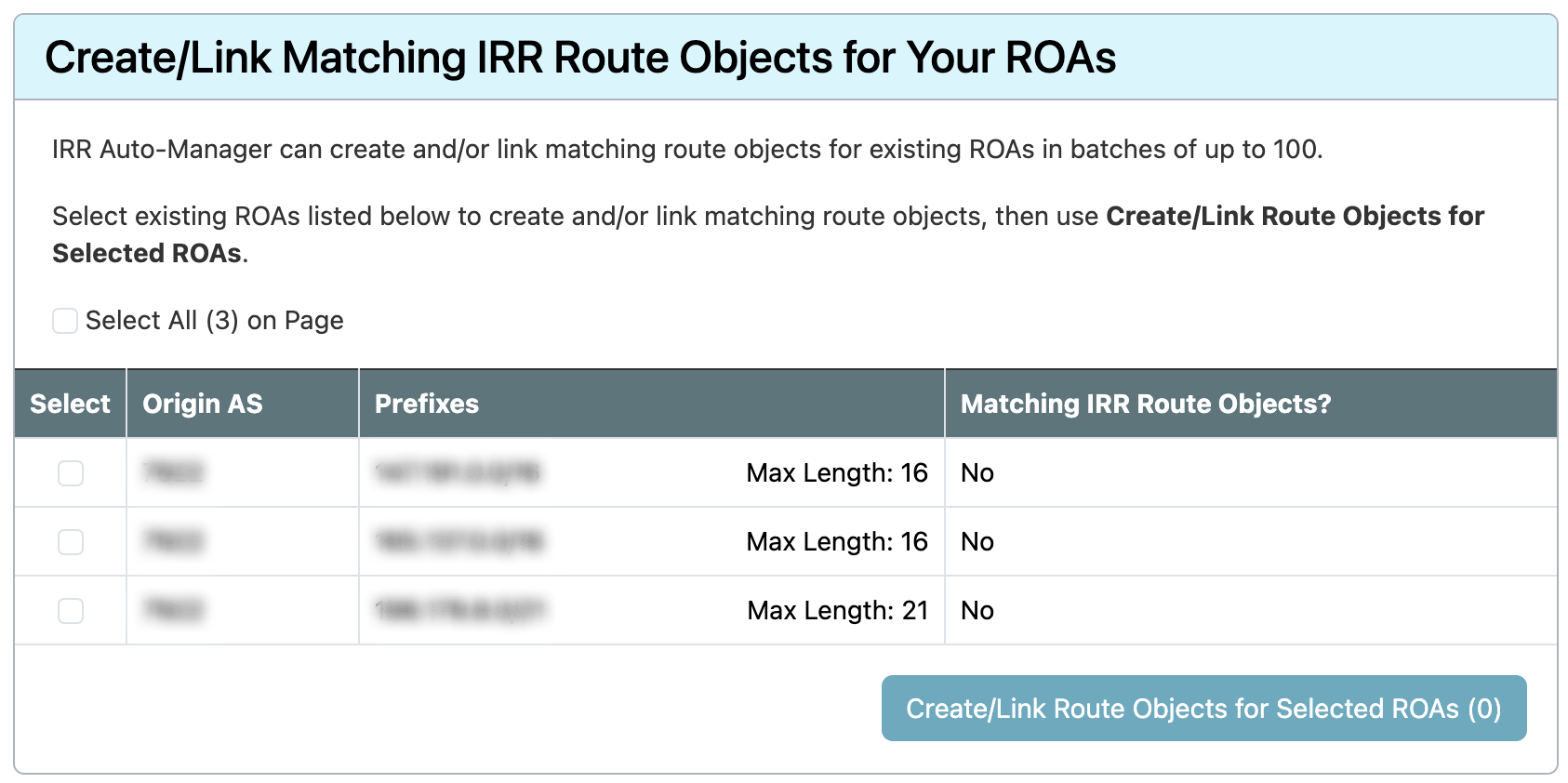
Beneath the “Manage IRR Auto-Manager” table you will be presented with the “Create/Link Matching IRR Route Objects for Your ROAs” table displaying your ROAs, and the ability to select/deselect the entirety of ROAs on the page, as well as individual ROAs. The table will also present the Origin AS, Prefixes, and status of any Matching IRR route objects. They may not exist or may exist but are not linked. Selecting the ROAs and selecting “Create/Link Route Objects for Selected ROAs (n)” will create and/or link IRR route objects to the ROA. A confirmation message will be shown at the top of the page.
You can select the number of rows to be displayed on each page (10, 25, 50, or 100), and selections are not retained from page to page. Only the selections on the current page are included when selecting “Create/Link Route Objects for Selected ROAs (n).”
Using the IRR Auto-Manager in RegRWS
In order to maintain backward compatibility of ARIN’s RESTful API, the previous RPKI Transaction Endpoint call will not default to creating IRR route objects when used to manage ROAs. An API user must explicitly set the option to create or delete auto-managed IRR route objects. ARIN’s RPKI RESTful API User Guide has been updated with the instruction to create and delete matching IRR route objects.
Resource Public Key Infrastructure (RPKI)
- About RPKI
- RPKI Deployment Options
- Route Origin Authorizations (ROAs)
- Autonomous System Provider Authorizations (ASPAs)
- RPKI Help and Information
Related
- RPKI RESTful API User Guide
- ARIN’s Operational and Test Environment (OT&E)
- Training & Education Resources at ARIN
Registration Services Help Desk
7:00 AM to 7:00 PM ET
Phone: +1.703.227.0660
Fax: +1.703.997.8844